Next.js Multisite App Router with Fetch API
An example mulitsite headless WordPress application using Next.js App Router and the fetch API to fetch data from WordPress using WPGraphQL. It showcases different data fetching strategies, state management techniques, and modern web development patterns in a real-world application context. This also contains a full example using wp-env and sample data.
Prerequisites
Section titled “Prerequisites”- Node.js (v18+ recommended)
- Docker (if you plan on running the example see details below)
Project Structure
Section titled “Project Structure”/├── example-app/ # Next.js App Headless Example Application│ ├── app/ # Application-specific pages and routes│ ├── components/ # Reusable UI components│ ├── lib/ # Utility functions and libraries and WP GraphQL Fragments||-- screenshots/ # Example screenshots for this README|├── wp-env/ # WordPress local environment setup│ ├── wp-env.json│ ├── db/ # Example database export to be imported for the example setup│ ├── setup/ # .htaccess file to fix a CORS issue| |── log/ # Log file for wp-content/debug.log│ ├── uploads/ # wp-content/uploads directory when the example application is run.├── package.json # Scripts for running the example applicationFeatures
Section titled “Features”-
Covers various rendering patterns of Next.js
- Server-Side Rendering (SSR) for dynamic pages
- Static Site Generation (SSG) for static pages
- Client-Side data fetching (CSR) for blog settings
- Hybrid data fetching, combining SSR and CSR
-
Multisite Features
-
Dynamic site management in next.config.mjs
-
Fetch data based off site key defined in next.config.mjs
-
Homepage dynamically fetches and displays data from multiple WordPress sites in the multisite network.
-
Catch-All Template
- The catch-all template fetches data from all WordPress sites in the multisite network.
- It loops through each site until it finds the relevant data to display.
- Can be extended on a per site basis for querying different fragments
-
-
Blog features
- Listing posts with pagination
- Fetching posts and pages using nodeByUri of WPGraphQL
- Fetching static pages at build time
- Commenting posts
- Header with dynamic blog title
- Featured image
- Includes category and tag blog post listings
-
Other Template Features
- Page template
- CPT template with listings for a CPT events (can be adapted for other CPT)
- Single CPT page with ACF custom meta fields
Screenshots
Section titled “Screenshots”
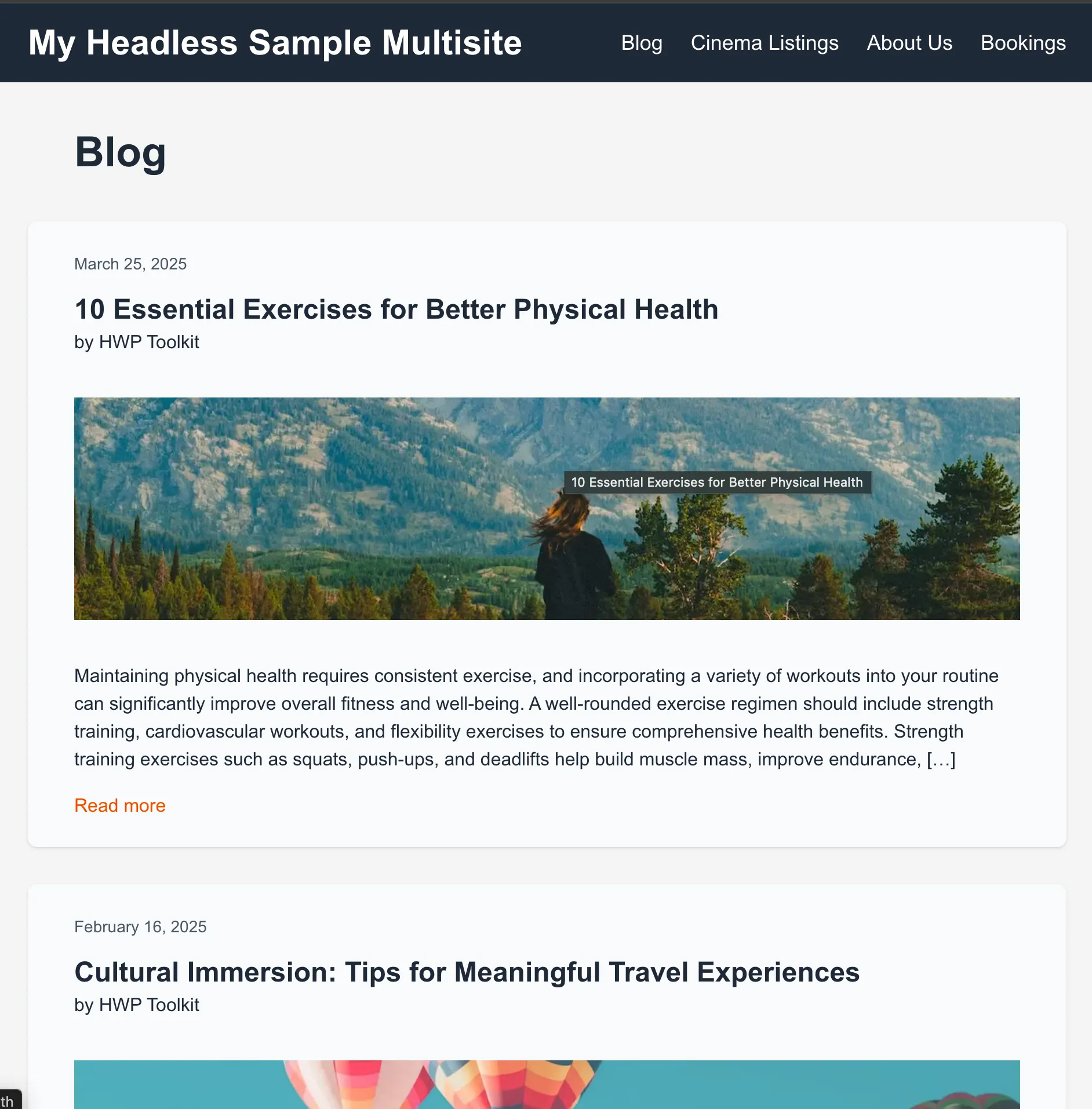
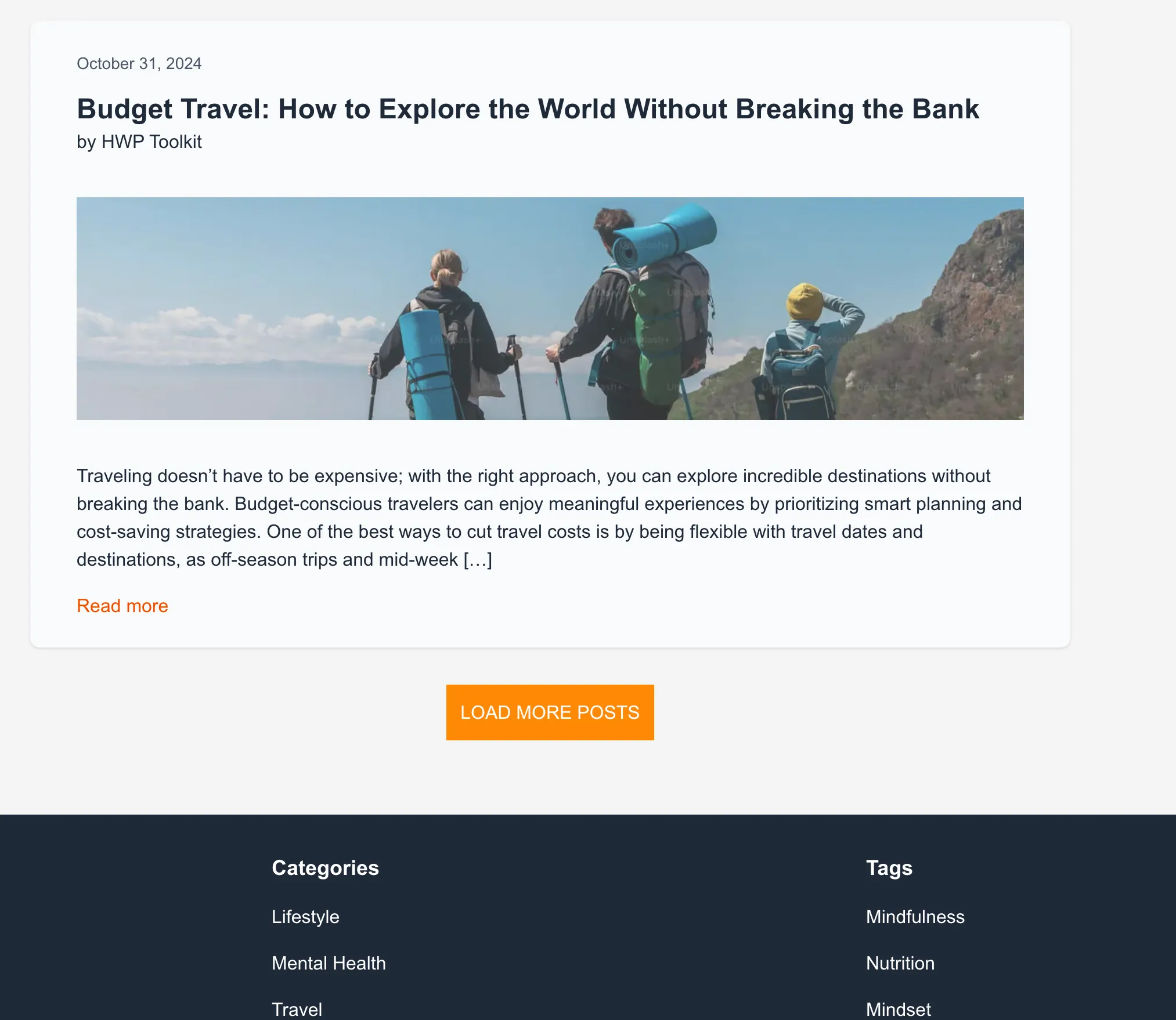

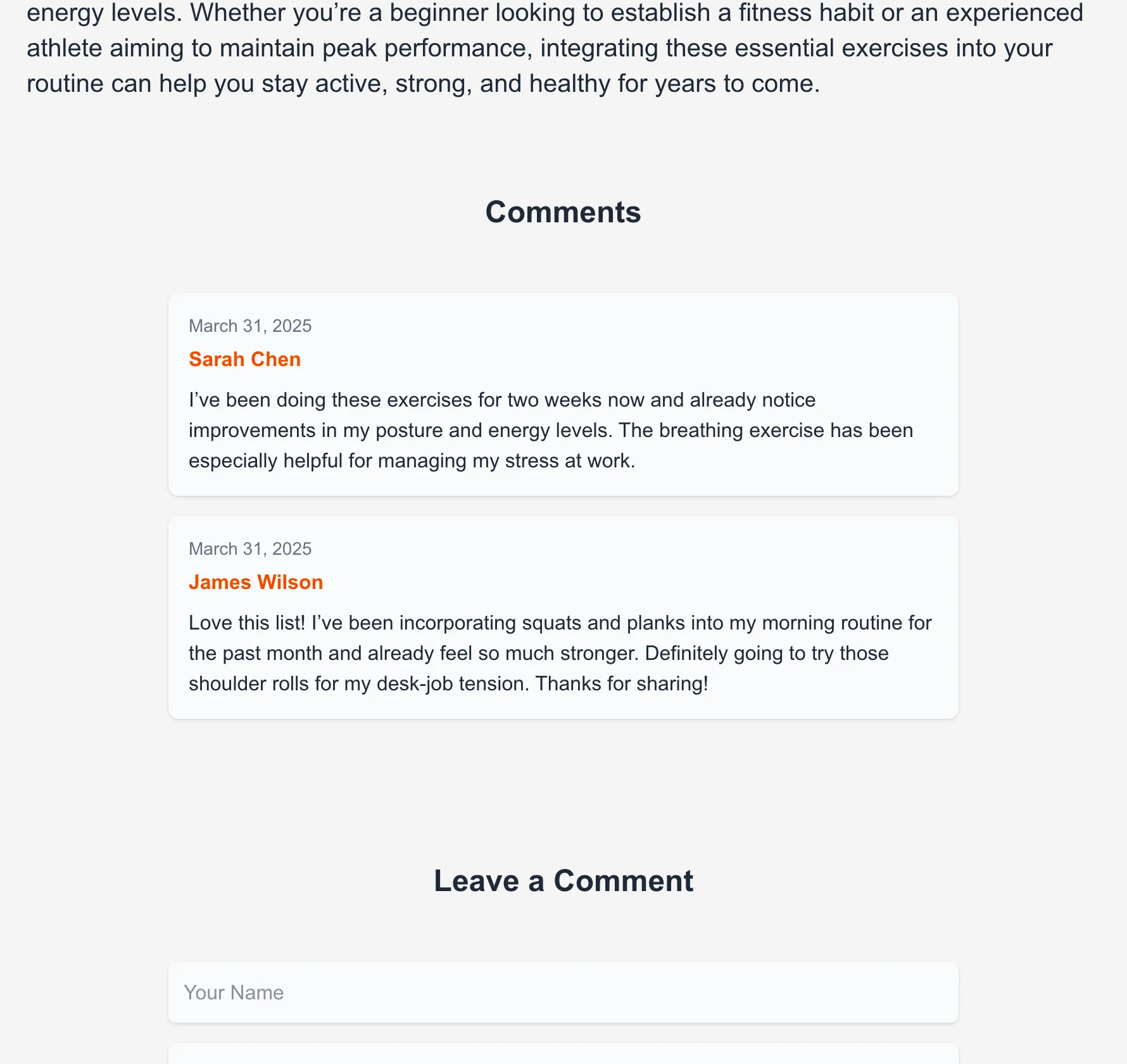
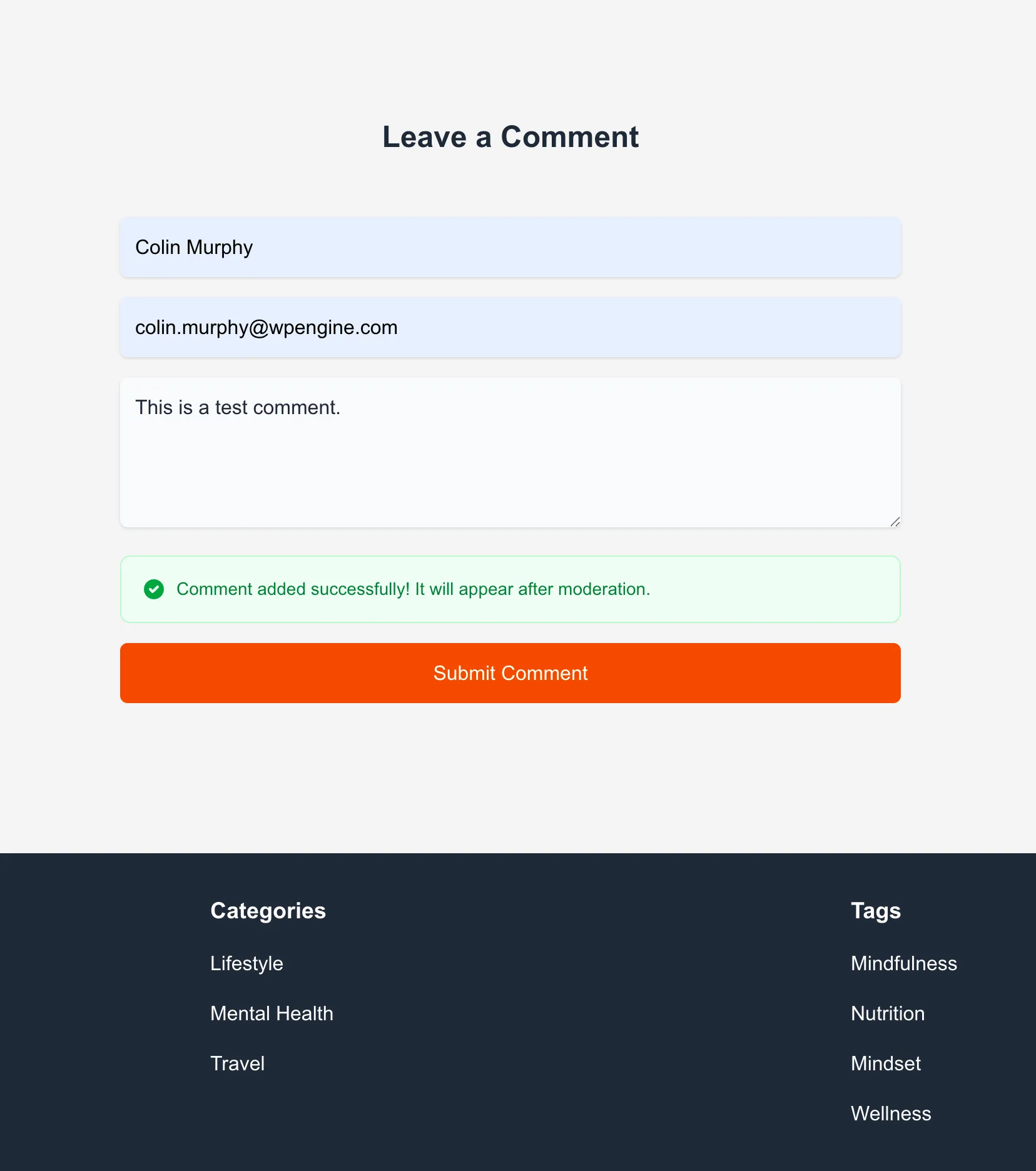
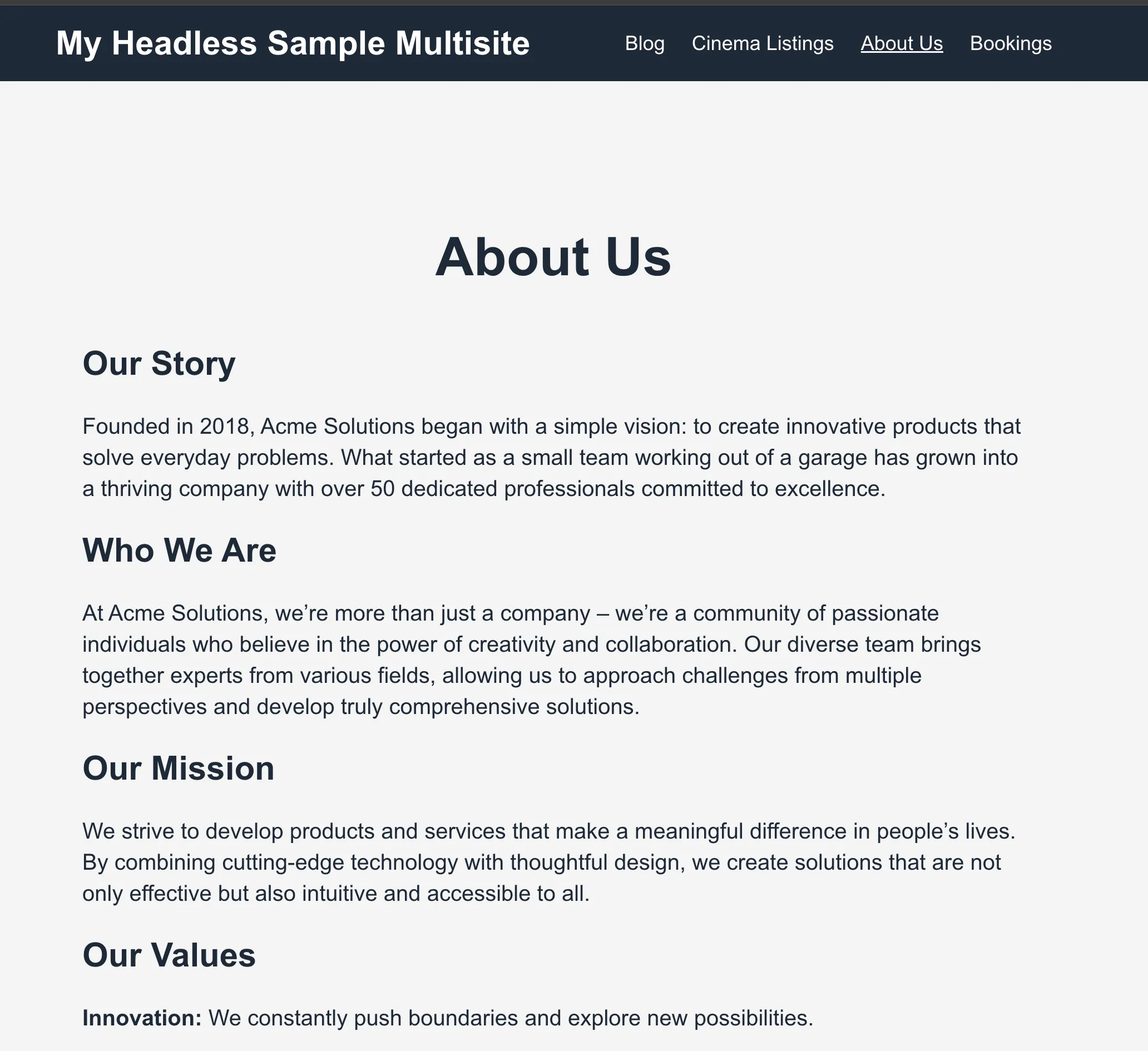
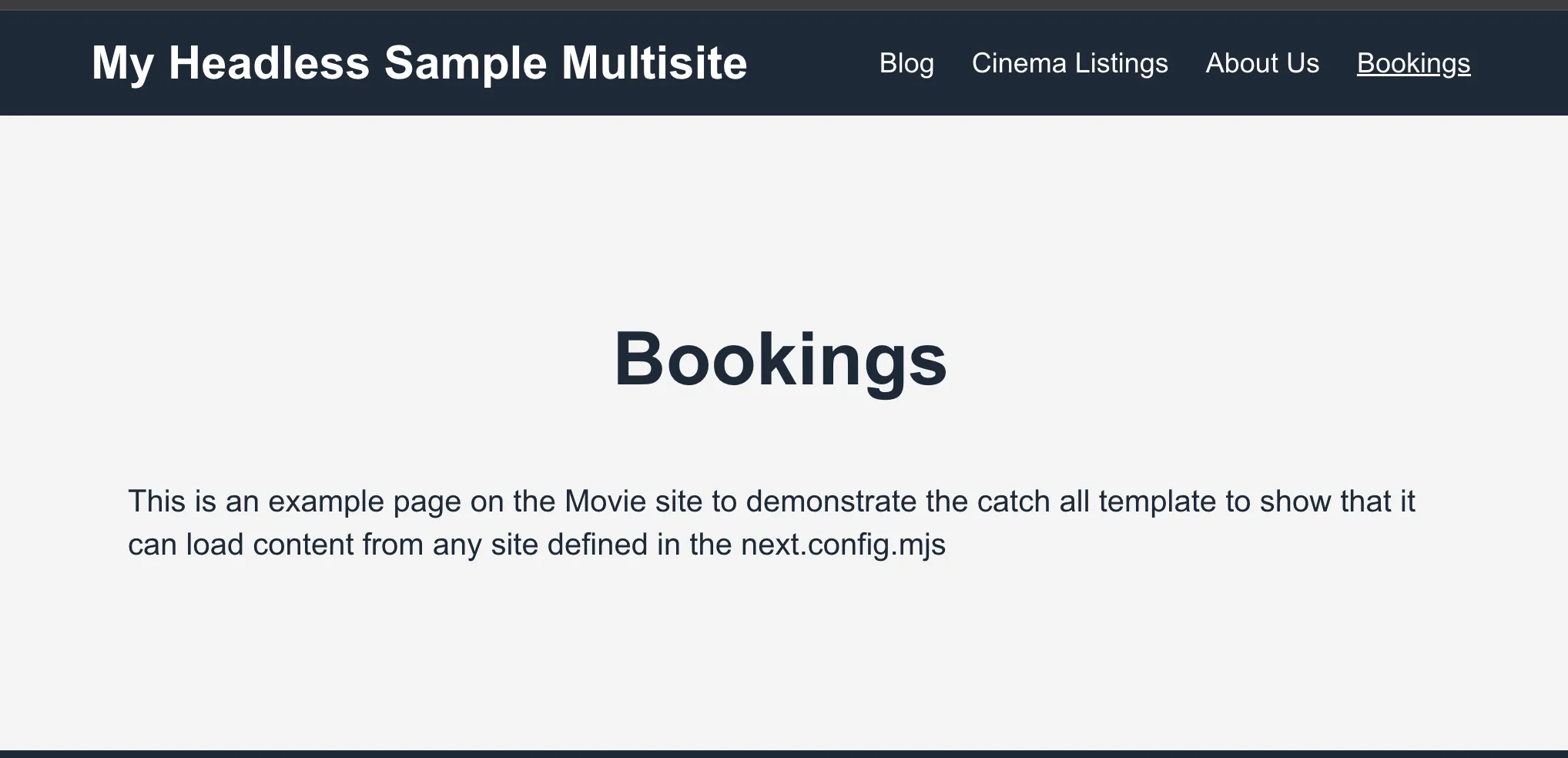
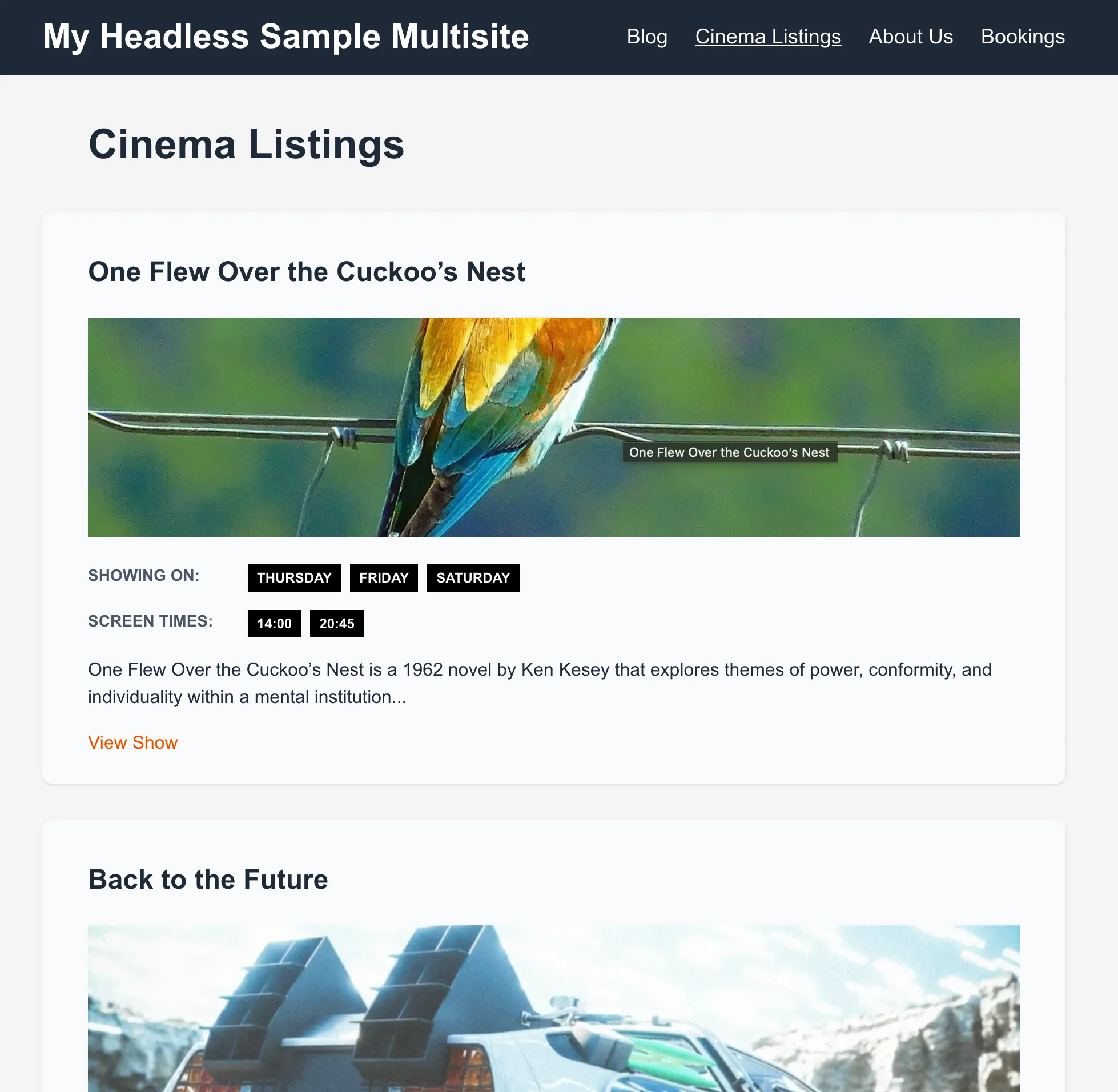
Prerequisites
Section titled “Prerequisites”Note Please make sure you have all prerequisites installed as mentioned above and Docker running (docker ps)
Setup Repository and Packages
Section titled “Setup Repository and Packages”- Clone the repo
git clone https://github.com/wpengine/hwptoolkit.git - Install packages
cd hwptoolkit && npm install - Setup a .env file under
examples/next/client-multisite-app-router-fetch-data/example-appwith the following variables:
NEXT_PUBLIC_WORDPRESS_URL=http://localhost:8888NEXT_PUBLIC_MOVIE_WORDPRESS_URL=http://localhost:8888/moviese.g.
echo "NEXT_PUBLIC_WORDPRESS_URL=http://localhost:8888" > examples/next/client-multisite-app-router-fetch-data/example-app/.envecho "NEXT_PUBLIC_MOVIE_WORDPRESS_URL=http://localhost:8888/movies" >> examples/next/client-multisite-app-router-fetch-data/example-app/.envBuild and start the application
Section titled “Build and start the application”cd examples/next/client-multisite-app-router-fetch-data- Then run
npm run example:buildwill build and start your application. - This does the following:
- Starts up wp-env
- Imports the database from
wp-env/db/database.sql - Sets the mulitisite wp-config.php variables
- Install Next.js dependencies for
example-app - Runs the Next.js dev script
Congratulations, WordPress should now be fully set up.
| Frontend | Admin |
|---|---|
http://localhost:3000/ | http://localhost:8888/wp-admin/ |
The login details for the admin is username “admin” and password “password”
Command Reference
Section titled “Command Reference”| Command | Description |
|---|---|
example:build | Prepares the environment by starting WordPress, importing the database, and starting the application. |
example:dev | Runs the Next.js development server. |
example:dev:install | Installs the required Next.js packages. |
example:start | Starts WordPress, sets the multisite variables, and starts the Next.js development server. |
example:stop | Stops the WordPress environment. |
example:prune | Rebuilds and restarts the application by destroying and recreating the WordPress environment. |
wp:start | Starts the WordPress environment. |
wp:stop | Stops the WordPress environment. |
wp:multisite:set:variables | Sets the variables for multisite in wp-config.php. |
wp:destroy | Completely removes the WordPress environment. |
wp:db:query | Executes a database query within the WordPress environment. |
wp:db:export | Exports the WordPress database to wp-env/db/database.sql. |
wp:db:import | Imports the WordPress database from wp-env/db/database.sql. |
Note You can run
npm run wp-envand use any other wp-env command. You can also see https://www.npmjs.com/package/@wordpress/env for more details on how to use or configurewp-env.
Database access
Section titled “Database access”If you need database access add the following to your wp-env "phpmyadminPort": 11111, (where port 11111 is not allocated).
You can check if a port is free by running lsof -i :11111
Adding more sites to the multisite examples
Section titled “Adding more sites to the multisite examples”If you want to add more sites you need to do the followint
- Add the variable to your .env next.js setup e.g.
NEXT_PUBLIC_SPORT_WORDPRESS_URL=http://localhost:8888/sport - Update your next.config.mjs with a site key and this value e.g.
WORDPRESS_SITES: JSON.stringify({ main: process.env.NEXT_PUBLIC_WORDPRESS_URL + "/graphql", movie_site: process.env.NEXT_PUBLIC_MOVIE_WORDPRESS_URL + "/graphql", sport_site: process.env.NEXT_PUBLIC_SPORT_WORDPRESS_URL + "/graphql", }),You then use the site key e.g. sport_site when fetching data with a template or the fetchGraphQL function
e.g.
import { SportsListingsQuery } from "@/lib/queries/SportsListingsQuery";import { CustomPostTypeTemplate } from "@/components/cpt/CustomPostTypeTemplate";
export default async function SportsListingsPage(params) {  return CustomPostTypeTemplate(SportsListingsQuery, {    params: params,    customPostType: "sport", # Update CPT    siteKey: "sport_site", # This is your site key    title: "Sport News",    cacheExpiry: 3600,  });}
Note
- You need to add the query
- You also need to update the Custom Post Type Template to include your listings template