Next.js Filesystem Routing with Apollo Client
This is a Next.js project integrated with WPGraphQL and WPGraphQL for ACF to build a headless WordPress-powered site.
Screenshots
Section titled “Screenshots”After following the installation steps, you should have the example pages as shown in the screenshots below:
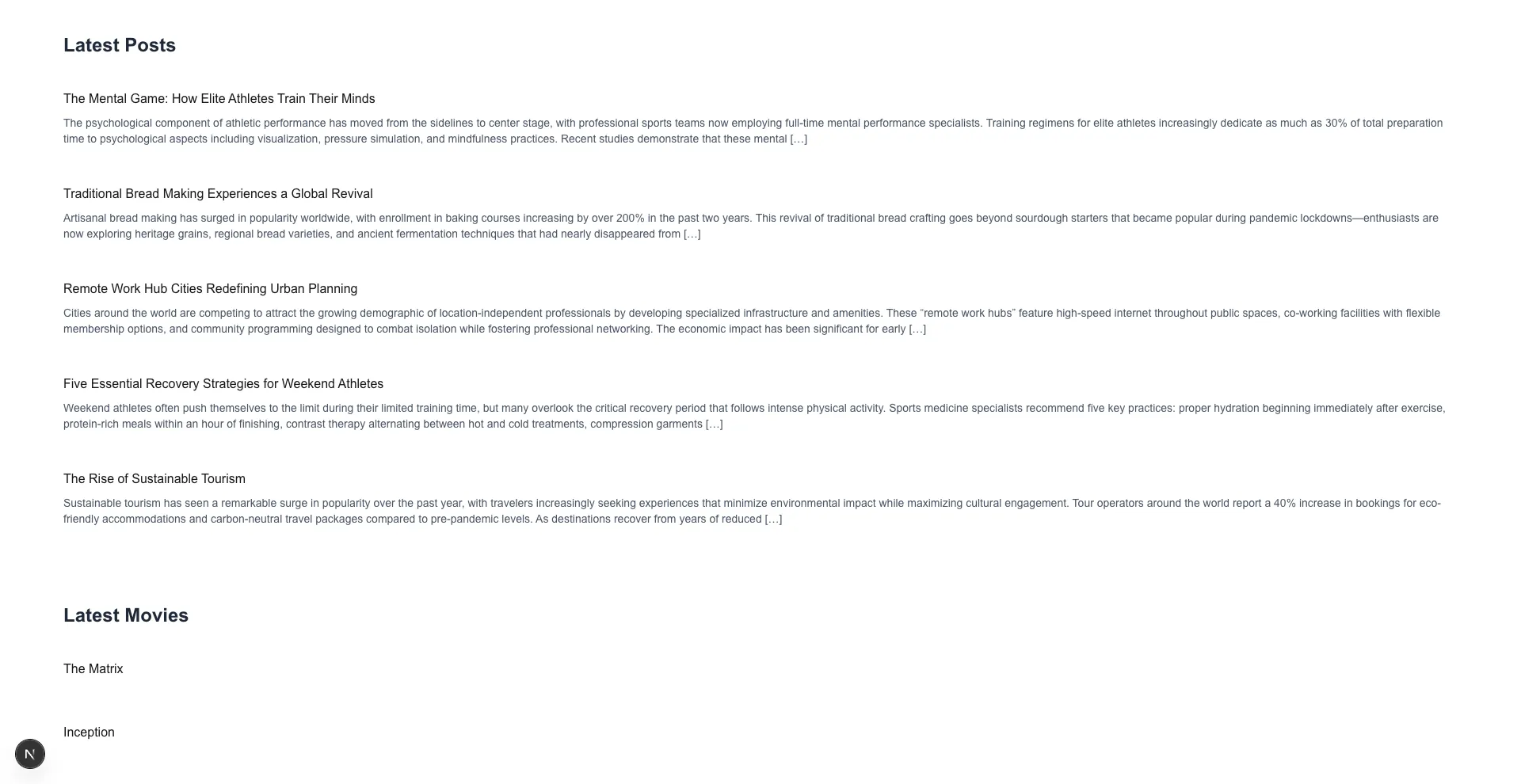 Home page |  Posts |
 Categories | 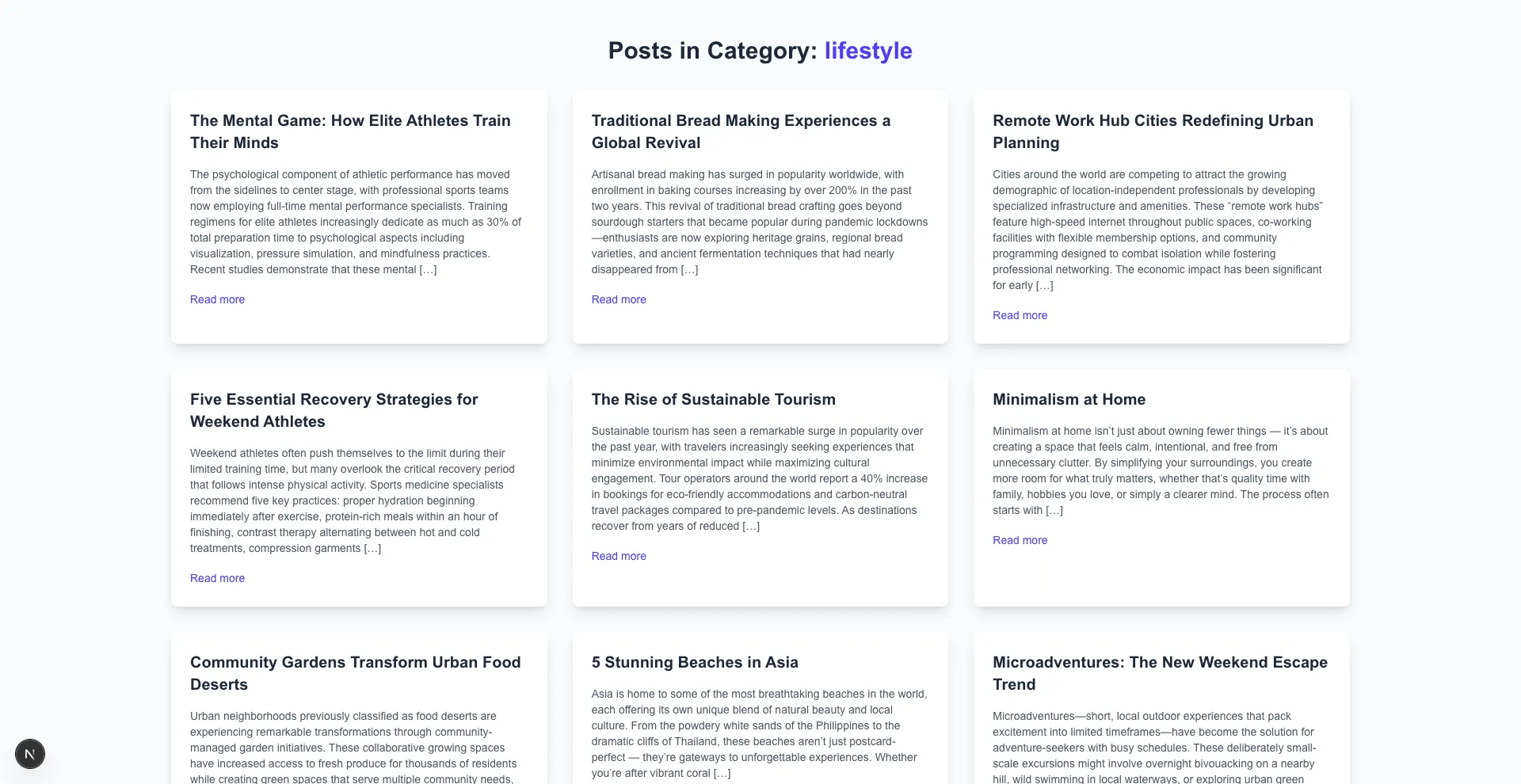 Category archive |
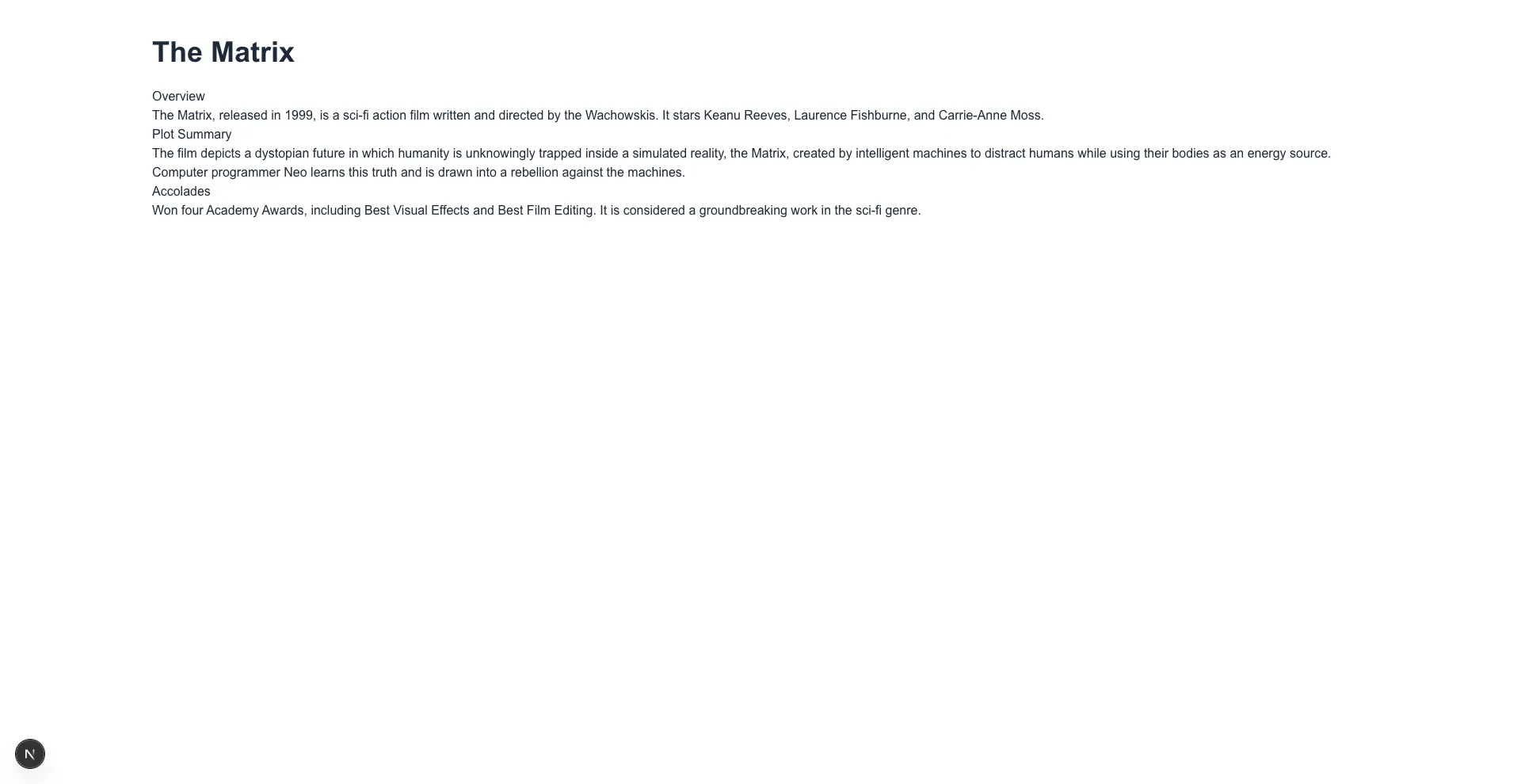 Custom post type |  Single post |
Project Structure
Section titled “Project Structure”This project follows Next.js file-based routing. Based on the WordPress permalink structure, the key pages are:
src/pages├── [slug].js # Dynamic page for general posts or pages├── _app.js # Next.js global settings├── _document.js # Document structure├── api│ └── hello.js # Example API route├── category│ ├── [category].js # Dynamic page for categories│ └── index.js # Categories index page├── index.js # Homepage (lists latest posts, movies, categories)├── movies│ ├── [slug].js # Dynamic page for individual movies│ └── index.js # Movies listing page└── posts ├── [slug].js # Dynamic page for individual posts └── index.js # Posts listing pageRunning the example with wp-env
Section titled “Running the example with wp-env”Prerequisites
Section titled “Prerequisites”- Node.js (v18+ recommended)
- Docker (if you plan on running the example see details below)
Note Please make sure you have all prerequisites installed as mentioned above and Docker running (docker ps)
Setup Repository and Packages
Section titled “Setup Repository and Packages”- Clone the repo
git clone https://github.com/wpengine/hwptoolkit.git - Install packages
cd hwptoolkit && npm install - Setup a .env file under
examples/next/apollo-client-filesystem-routing/example-appand add these values inside:
NEXT_PUBLIC_WORDPRESS_URL=http://localhost:8888or run the command below:
echo "NEXT_PUBLIC_WORDPRESS_URL=http://localhost:8888" > examples/next/apollo-client-filesystem-routing/example-app/.envBuild and start the application
Section titled “Build and start the application”cd examples/next/apollo-client-filesystem-routing- Then run
npm run example:buildwill build and start your application. - This does the following:
- Starts up wp-env
- Imports the database from
wp-env/db/database.sql - Install Next.js dependencies for
example-app - Runs the Next.js dev script
Congratulations, WordPress should now be fully set up.
| Frontend | Admin |
|---|---|
http://localhost:3000/ | http://localhost:8888/wp-admin/ |
Note: The login details for the admin is username “admin” and password “password”
Command Reference
Section titled “Command Reference”| Command | Description |
|---|---|
example:build | Prepares the environment by starting WordPress, importing the database, and starting the application. |
example:dev | Runs the Next.js development server. |
example:dev:install | Installs the required Next.js packages. |
example:start | Starts WordPress and the Next.js development server. |
example:stop | Stops the WordPress environment. |
example:prune | Rebuilds and restarts the application by destroying and recreating the WordPress environment. |
wp:start | Starts the WordPress environment. |
wp:stop | Stops the WordPress environment. |
wp:destroy | Completely removes the WordPress environment. |
wp:db:query | Executes a database query within the WordPress environment. |
wp:db:export | Exports the WordPress database to wp-env/db/database.sql. |
wp:db:import | Imports the WordPress database from wp-env/db/database.sql. |
Note You can run
npm run wp-envand use any other wp-env command. You can also see https://www.npmjs.com/package/@wordpress/env for more details on how to use or configurewp-env.
Database access
Section titled “Database access”If you need database access add the following to your wp-env "phpmyadminPort": 11111, (where port 11111 is not allocated).
You can check if a port is free by running lsof -i :11111